
Published Jun 2, 2026, 6:00 PM EDT
Aggy is a writer and editor who has worked for many high-traffic digital publications. He’s a technology and gaming fanboy who has been a writer, editor, consultant, and computer animator.
Driving through a tunnel or under a lot of trees should not turn your car’s dashboard into a strobe light. When your dashboard system constantly flickers between light and dark modes, it becomes an active distraction that pulls your attention away from the road. This is just one of many ways Android Auto fails when it tries to be too smart for its own good. By letting the car and phone fight over sensor data, resolution, and wireless signals, you get a system that stutters or disconnects at the worst possible moments. You can take back control with a few tweaks in some hidden menus you can tweak.
Related
I fixed my Android Auto lag and the cause was embarrassingly simple
I spent months blaming my car for Android Auto lag — it was my USB cable, and you’re probably making the same mistake.
Pick a mode and stick to it
Day or night mode, not in between
By default, Android Auto lets your car decide whether to show light or dark mode, based on things like the ambient light sensor or whether your headlights are on. That sounds reasonable, but in practice, it causes problems. Every time you drive through a tunnel, under heavy tree cover, or past something that triggers the sensor, the interface switches themes.
Switching themes means the system has to redraw the screen, and that redraw shows up as a flicker or stutter right in the middle of your navigation. Once I locked the theme to a static mode, the flickering stopped. Locking it to dark mode during the day can cause accidents since you won’t be able to see the map clearly.
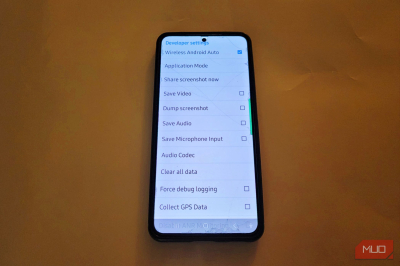
Many Android versions finally have this available as a normal setting and feature built in, but plenty still do not. If you can’t find it in your settings, you’ll have to go through the hidden developer menu. To get there, go to Android Auto settings on your phone and tap the version number ten times. That unlocks a developer options menu where you can force either Day or Night mode permanently, that cuts the car’s sensors out of the decision entirely, so your display stays consistent regardless of the weather or time of day.
I am unsure why this has to be an issue to find, but it’s definitely worth fixing. If you prefer one over the other, make sure to just keep your screen that way. Otherwise, you’ll have some problems. I actually spent days with it in night mode, and the only way for it to turn off was for me to figure out this trick. It took weeks before switching it back to auto would result in day mode.
I keep it in day mode all the time now because night mode is impossible to see during the day.
Force a higher resolution
Don’t trust your car to know exactly what works for you
Another issue is video resolution. Android Auto works by streaming your phone’s display directly to your car’s screen, and by default, your phone and car negotiate the resolution automatically every time you connect. The idea behind this is reasonable because they’re supposed to find a setting that balances image quality, how much data needs to move through the cable, and how much heat the phone generates while it’s running.
They are supposed to land on the best option for your specific setup without you having to think about it. However, I’ve noticed that this can be pretty unreliable sometimes. Every time you plug in, your phone and head unit go back and forth trying to agree on a resolution.
That process doesn’t always go smoothly. If there’s any hesitation in the handshake, a brief dip in USB bandwidth, or just a timing issue between the two devices, the negotiation can settle on the wrong setting entirely. Sometimes it can even lead to the screen going completely black for a few seconds before trying again.
You’re letting two pieces of hardware make a real-time decision that they don’t always get right. Automatic negotiation introduces a variable that doesn’t need to be there. Your car’s screen has a native resolution, your phone is capable of outputting a clean 1920 by 1080 signal, and there’s no good reason to leave that up to chance every single time you connect.
Locking the resolution manually to 1920 by 1080 inside the developer menu removes the negotiation entirely. The setting is fixed, the connection skips that back-and-forth step, and your display comes up sharp and stable every time without any intervention on your part. This is worth tweaking.
Go back to your developer settings on Android Auto and go to Video resolution. You’re going to want to change the selection from the default automatic option to Allow up to 1920×1080. Finally, unplug your phone from the USB port or disconnect from your wireless adapter, then reconnect it to force Android Auto to boot up with the new resolution setting.
Bypass the launcher restrictions
If you have custom apps, they should still show up
Google has strict rules about which apps are allowed to run through Android Auto. Every app on the Play Store gets a verified signature, and Android Auto checks for that signature before it lets an app appear in your car.
If an app doesn’t have one of these signatures, whether it’s sideloaded, a custom build, or just something Google hasn’t officially approved, it gets blocked from showing up on your dashboard entirely.
This is a real problem if you like to have your own apps. A few good examples are a local music player for your offline library or a third-party app that handles your audio the way you actually want it to. Not everyone likes to just stick to the apps they’re given by default.
These apps work perfectly fine on your phone, but as far as Android Auto is concerned, they don’t exist. The fix is a single checkbox in your developer settings labeled Unknown Sources. Turning this on tells Android Auto to stop rejecting apps that didn’t come from the Play Store. Once it’s enabled, your phone stops blocking those apps, letting them run without causing any connection issues between your phone and your car.
Enabling that setting alone isn’t quite enough though. The apps will be allowed to run, but they won’t automatically show up on your dashboard. You need to go into your regular Android Auto settings, find the Customize Launcher section, and manually check the box next to whichever apps you want to appear.
Once you do that, they’ll show up on your car’s screen just like any official app, and your steering wheel controls will work with them the same way. It’s worth noting that sideloaded apps still stay within their lane; they run as audio or navigation apps, not anything outside those categories. But within that, you get full control over what’s actually on your screen instead of being limited to whatever Google has decided to approve.
Be careful about messing with options in developer mode
While it is fine to change the settings mentioned above, be careful with the other options in that menu. It’s better not to mess with settings you’re not familiar with. That said, if you are tired of dealing with a screen that goes black or audio that drops out whenever you pass a cell tower, these changes are a good way to force stability. Once you lock in your preferences, you get a wired, consistent connection that works every time you drive.
OS
Android
Price model
Free
App Type
Navigation/Entertainment
Android Auto is an Android-only app that mirrors your phone onto your car’s infotainment display with a simplified, driving-optimised interface. Supports Google Maps, Waze, music and podcast apps, hands-free calls, messaging, and Google Assistant voice control. Requires a compatible vehicle and Android 8.0 or later.
Leave a Reply